
How to Create a Smooth Face Morph Video From Your Selfies (Automatic AI Alignment)
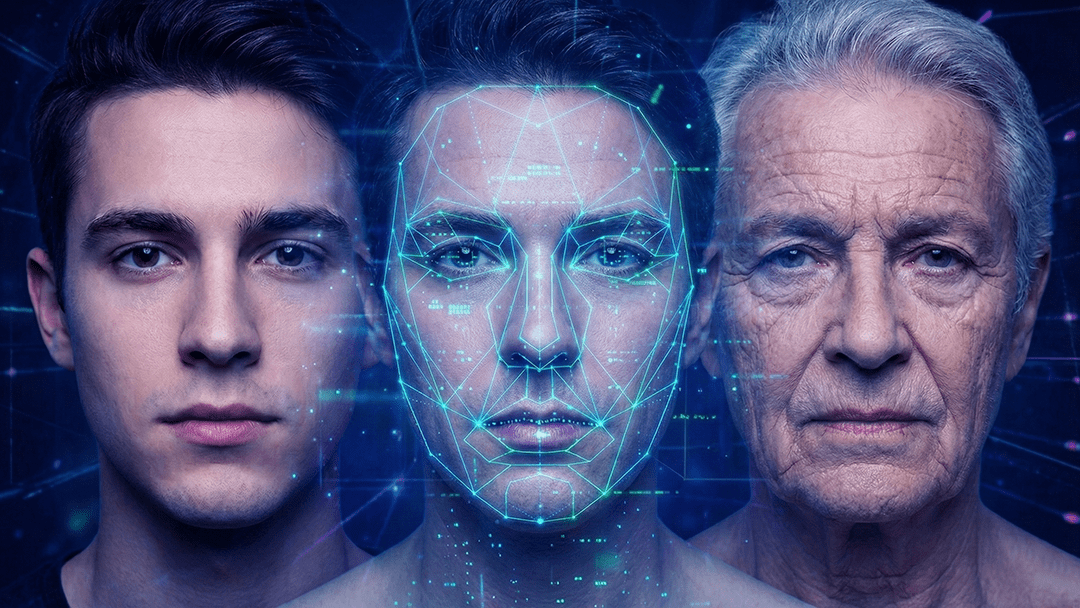
Face morph videos are everywhere—smooth transitions, cinematic blending, and transformations that unfold frame by frame. In the past, making one meant complicated editing tools, manual photo alignment, and lots of time.
Today, you can create a smooth face morph video from your selfies automatically, right on your phone.
Whether you’re documenting an aging journey, a fitness transformation, or a creative glow-up story, this guide shows the easiest way to make a professional-looking morph video with no editing experience needed.
What Is a Face Morph Video?
A face morph video blends a series of selfies so each photo smoothly transitions into the next. Instead of quick photo switches, the video feels like a single flowing transformation.
It’s perfect for:
Aging transformations
Daily selfie projects
Pregnancy or weight-loss journeys
Childhood-to-adulthood progressions
Glow-up or makeover videos
Long-term memory diaries
The secret to a great result is simple: consistent selfies and smooth transitions—both become much easier with the right app.
Step 1: Capture Consistent Selfies (The App Helps)
The smoother your selfies match from day to day, the better your morph video looks. Daily Selfie includes simple tools that help you stay consistent:
✓ Face guide
On-screen guides help you place your face in a similar position each time, so your video feels stable and smooth.
✓ Last photo preview (optional)
Overlay your previous selfie lightly on the camera preview to match your angle, distance, and pose.
✓ Grid guide (optional)
A grid makes it easier to keep your selfie centered and balanced.
These small helpers reduce the most common issues: shaky framing and inconsistent positioning.
Step 2: Organize Your Selfies Into a Collection
Keep different journeys separate by creating collections like:
Daily Selfies
Aging Journey
Fitness Transformation
Beard Growth
Haircut Progress
Skincare Journey
Your selfies stay in order, and it’s easier to keep the habit going—especially for long-term projects.
Step 3: Open the “Smooth Morph Video” Creator
When you’re ready, choose the Smooth Morph Video option. This style is designed for clean, flowing transitions so your transformation looks natural and shareable.
Even if some older photos are not perfectly consistent, the app helps your video look more stable and polished.
Step 4: Pick Your Photos in Order
Select the selfies you want to include, then choose the order (oldest to newest is usually best for transformations). Longer journeys often look more impressive—so include more photos when you can.
Step 5: Choose a Speed That Matches Your Story
Slow speeds feel cinematic and emotional. Faster speeds feel energetic and dramatic. Try a couple of settings until the video “feels right” for your journey.
Step 6: Add Music (Optional)
Music can completely change the mood. Choose a calm track for reflective journeys or an upbeat track for high-energy transformations. You can also export a silent video if you prefer.
Step 7: Export in High Quality
Export your morph video in a clean, share-ready format. High-quality exports look better on Instagram, TikTok, and YouTube Shorts—and they’re more satisfying to keep as a personal memory.
Tips for a Better Face Morph Video
Try to take your selfie at a similar time each day
Use similar lighting when possible
Keep your face centered (the guides help)
Don’t stress about missing a day—just continue
Final Thoughts
A face morph video is one of the most powerful ways to show change over time. With Daily Selfie, you can turn your selfies into a smooth transformation video automatically—no editing skills required.
📲 Create Your First Morph Video Today
Start making smooth face morph videos with one tap:
👉 Download on Google Play: https://play.google.com/store/apps/details?id=com.diary.dailyselfie
👉 Download on iOS: https://apps.apple.com/app/id6756184981
Take your first selfie today—and watch your story unfold.